
Yes, Character.AI can generate images, but the right route depends on what you want to see. Imagine Chat creates a scene from your conversation, while Imagine Message turns one Character reply into an image. An older image-generation setting may also appear in some Character editors.
These features suit different creative goals. Sharing an existing photo in a chat is a separate action; an image attachment does not create a new visual. A prompt is a text instruction that describes an image’s subject, scene, and visual direction.
Key Takeaways
- Imagine Chat builds an image from the current conversation.
- Imagine Message illustrates one Character reply.
- Some older Character editors may still show Image Generation.
- Uploading a photo shares it; it does not generate a new image.
- Separate image tools can offer more control over a longer project.
You can identify the feature that fits your goal, follow a practical route, and choose a separate tool when your project needs more control.
Can C.AI Generate Images?
The three C.AI image routes differ by the image you want, not by interchangeable generator controls. Imagine Chat creates an image from the current conversation, while Imagine Message uses one Character reply.
For most users, Imagine Chat and Imagine Message are the direct ways to generate images in chat. Some users may also find Characters that create images with text replies, though their availability and behavior are not a dependable universal workflow.
Use Imagine Chat for a visual from the conversation, or Imagine Message for one specific reply. The older setting may not appear.
The C AI image generator experience depends on which feature appears in your app. The C.AI images you get can also vary with the conversation or reply that starts generation.
The older Image Generation setting sat in Character editor settings. It could produce images alongside text replies, but it may be absent from current interfaces.
| Goal | Feature | How it starts | Availability note |
|---|---|---|---|
| Visual from the current conversation | Imagine Chat | Open chat menu and choose Imagine Chat | Current route in the mobile app |
| Image from one reply | Imagine Message | Tap the image icon on that reply | Available in the app where the feature appears |
| Images beside Character text replies | Legacy Image Generation | Enable it in Character settings | May be absent from current interfaces |
If you want the Character to see an existing photo, use an image attachment instead of an image-generation feature.
Can You Upload an Image to a C.AI Chat?
If you want a Character to see a real photo, upload an image attachment; if you want a new scene, use image generation. Those actions serve different purposes.
An attachment lets a Character react to an image you share, but it does not turn that image into a new visual. Character AI image upload can mean sharing a camera-roll photo in a conversation for discussion.
For example, upload a picture of your garden and ask about its flowers or layout. If you want a new illustration of that garden, start an image-generation feature separately.
Character.AI restored image uploads in 2025. At launch, free users could attach five images per day, but that was a historical limit, not a promise about today’s cap.
Attachment access and daily limits can change. The app may show different options or limits over time, so treat an older number as a past launch detail.
An image attachment can give a Character a visual reference for a conversation. It cannot, by itself, create an edited version, a new angle, or a separate illustration.
Once you know whether you want to share a photo or make a new visual, you can choose a chat-based scene workflow.
How to Generate Images on Character AI With Imagine Chat
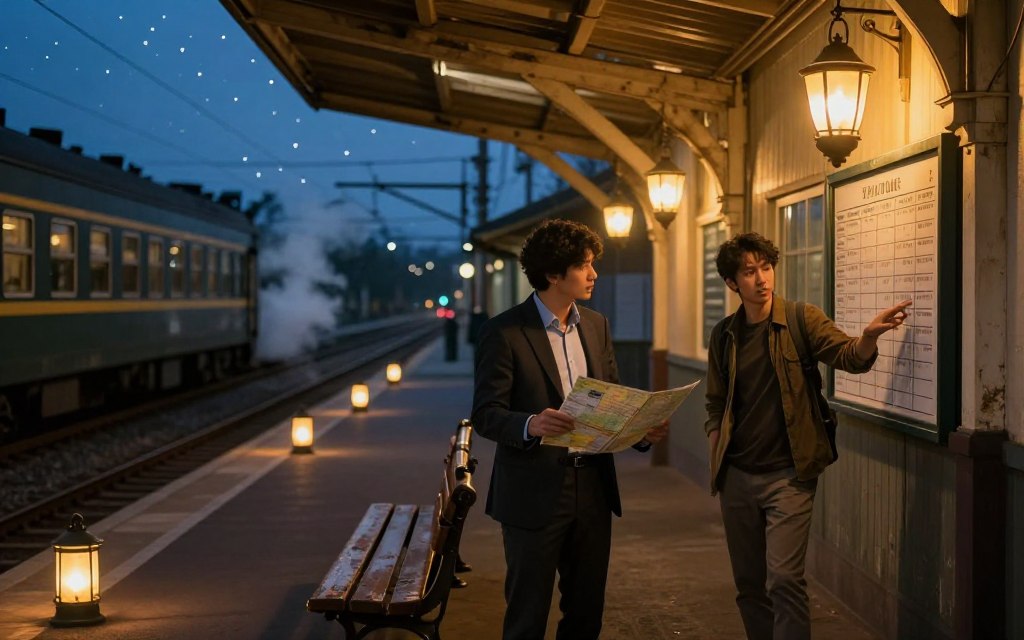
Start with a concrete scene, such as a nervous traveler entering a lantern-lit station, rather than an abstract request to make something beautiful. Visible details give the image more to work with.
Imagine Chat uses conversation context, so a bare request like “make an image” may leave the scene underspecified. Set up the people, place, and mood in chat before opening the feature.
For example, have a character describe a nervous traveler entering a lantern-lit station during a storm. Add the traveler’s worn blue coat, the empty platform, and a soft watercolor look.
Set up a scene the model can visualize
Use the chat to establish the subject and the moment you want pictured. A clear exchange gives the image feature context that a short command may lack.
Include concrete details that would be visible in a still image. A character’s thoughts matter less than their expression, pose, clothing, and surroundings.
Open Imagine Chat and save the result
To learn how to generate images on Character AI, follow the app’s current menu path. The older interface may show a sparkle icon instead.
- Establish the subject and setting in the chat.
- Add a mood and visual style, such as a quiet, misty watercolor scene.
- Tap the Persona photo at the lower left, open Chat Menu Settings, or use the older sparkle icon.
- Choose Imagine Chat, review the output, then save or share it using the options available.
That is how to Imagine a chat image on C.AI: prepare the scene, open the feature, and check the result before sharing it.
If the first image misses an important detail, adjust the conversation before trying again. Keep the scene focused, so the model has fewer competing ideas to interpret.
The method uses the wider chat context. To illustrate one vivid Character reply instead, start from that specific message.
How to Turn One Character Reply Into an Image
Use a reply that describes an observable moment, not a line made up mostly of dialogue. A visible action gives the image a clear subject.
Where Imagine Message appears, tap the image icon on a Character reply to start generation from that reply. Choose text with a person, action, setting, and mood rather than abstract dialogue.
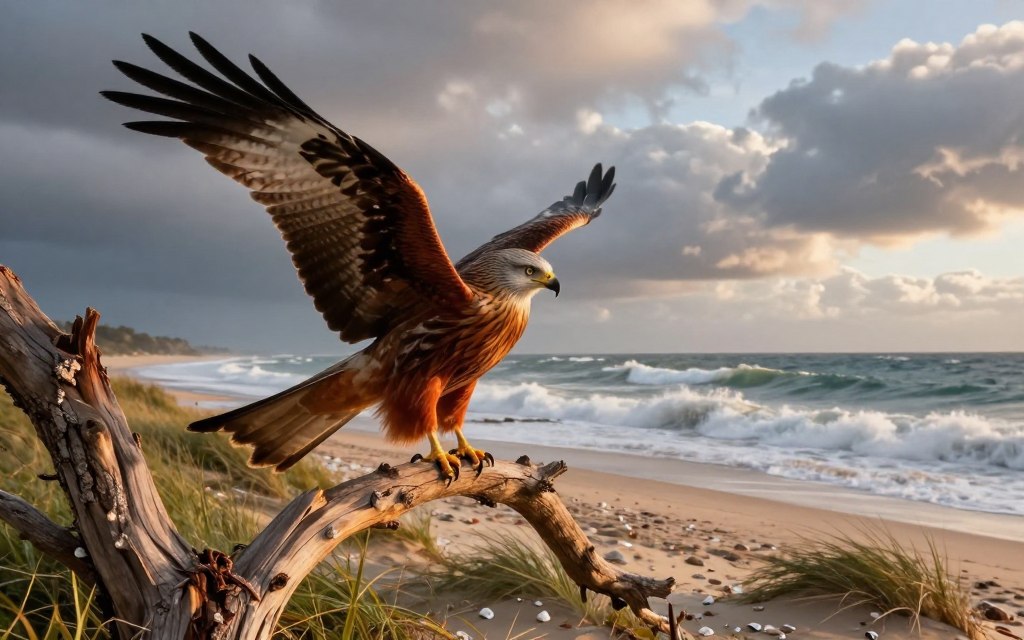
For example, a Character might describe a red kite caught in a tree above a windy beach. The kite, tree, and beach give the image feature visible anchors to interpret.
If the reply says only, “I feel strange today,” ask the Character to describe what is happening. It could mention a person watching waves under a gray sky.
A more specific reply can state where the person stands, what they are doing, and how the scene feels. You are shaping the source text, not adding a separate prompt field.
After generation, some versions let you swipe through image variations. The media viewer may offer actions such as saving, sharing, favoriting, posting, or downloading.
Those controls may not appear in the same way on every interface. Review the available options before leaving the viewer, especially if you want to keep a result.
Imagine Message focuses on one reply rather than the full conversation. Readers who want images beside text replies may be looking for the older Character-level setting.
Does the Legacy Image Generation Setting Still Work?
If an older tutorial led you to the Image Generation setting, it may no longer appear in your editor. Its presence is not guaranteed.
The legacy toggle was an advanced Character setting, not a feature every current account can access. If it appears, it can produce images alongside that Character’s text replies.
Older documentation described image-generating Characters as marked with a special icon. That label helped users spot Characters with the setting enabled.
Find the setting if it appears in your editor
If you can still edit a Character, look in advanced settings for Image Generation. The steps below describe the older setup, not a guaranteed current route.
- Create or edit a Character in the editor.
- Open advanced Character settings.
- Look for Image Generation and enable it if the option appears.
- Add a short Image Style, then test the Character in chat.
Know what the Image Style field controls
The older Image Style field accepted 0 to 100 characters. Its text guided images generated by that Character.
Useful examples include “soft watercolor children’s book illustration” and “cozy 2D cartoon, warm lighting.” Each phrase points to a visible style or lighting choice.
“Make it look nice” gives the image generator little direction. A short, concrete style description is easier to apply across replies.
If the setting is missing, use a current Imagine feature for image generation instead. Clear instructions can help across these workflows, even when the controls differ.
How to Improve C.AI Image Prompts and Results
“Draw Luna” gives an image generator few visible details; a scene with clothing, action, place, and style gives it more to render. Specific beats vague.
A useful image prompt names the subject, action, setting, mood, and desired style. Add composition or lighting when those details matter to the result.
Give the image a few clear visual anchors
Use this checklist to shape a full prompt without crowding it with details:
- Who or what appears in the image?
- What is happening in the scene?
- Where does the scene take place?
- What mood or visual style should it have?
- Which composition, lighting, or exclusions matter?
A before-and-after example shows how one image prompt can add useful detail. Before: “Draw Luna.” After: “Luna in a yellow raincoat sketches beside a forest stream, in a soft storybook style.”
Revise one detail at a time
After you see the result, decide which detail matters most. Ask for brighter lighting or a simpler background instead of changing several parts at once.
Targeted edits make it easier to see what changed the output. If you alter the subject, setting, style, and framing together, you may not know which instruction helped.
Keep the full prompt focused on the image you want, not every detail from the conversation. Short instructions can work well when they name the visible parts clearly.
Better instructions cannot fix a missing feature or every failed generation. A missing control, usage limit, or blocked request calls for a different check.
Why Is the Character AI Image Generator Not Working?
A missing button usually calls for checking the interface before rewriting the prompt. The feature may be elsewhere, unavailable, or limited.
“Character AI image generator free” does not mean unlimited generations. Feature access and usage limits can depend on the interface, account, and event rules.
During the DokiDoki Imagine event, free users received five regular Imagine Chat images. C.AI+ subscribers received 20, plus event-specific generations.
Those were event limits, not permanent quotas. Charms were introduced as in-app currency, earned through quests and used during beta for items, including extra Imagine images.
Do not treat event quotas or Charm uses as a lasting allowance. The app’s current display gives the relevant account information for the feature.
| Symptom | Possible cause | What to check | Next action |
|---|---|---|---|
| Imagine Chat missing | Wrong menu or interface version | Persona-photo menu, older sparkle icon, app update | Check the current app route |
| Legacy toggle missing | Older setting unavailable in this editor | Advanced Character settings | Use Imagine Chat |
| Generation stops after repeated attempts | An allowance or event cap may apply | Current account display and feature limits | Wait or check available in-app options |
| Request blocked | Content may violate policy | Wording and subject matter | Rewrite safely or choose a permitted scene |
Check the interface, app, and feature availability
First check the Persona-photo menu or, on an older interface, the sparkle icon. An app update may also change where a feature appears.
If the legacy toggle is absent from advanced Character settings, use a current image feature instead. The older editor control may not be available to your account.
Check limits and content restrictions
Character.AI’s community guidelines prohibit child exploitation, nudity, hateful or dehumanizing content, and promotion of real-world violence.
The rules also prohibit privacy violations, impersonation without permission, and intellectual-property infringement. A request that crosses these lines may be blocked.
If you want more context on moderation and blocked requests, read about C.AI’s content filters and safety rules.
Some failures come from workflow limits, not a setting error. If you need another kind of visual control, choose a tool built for that task.
What Alternatives Can You Use to Create Images?
Name the task first: illustrating one chat moment, refining a design, or building a set of related visuals. The best fit depends on the work.
C.AI Imagine suits chat moments, while other image tools offer different ways to direct and revise visuals. Compare the workflow, not just the final image.
Choose a chat-centered tool for quick iteration
ChatGPT supports original image generation, revisions, composition or size changes, and image editing. You can direct it with clear text instructions and follow-up edits.
For better results, describe the intended subject, action, setting, and style. Add any constraints that matter, then check that each revision keeps the details you need.
Choose a dedicated image workflow for more control
Adobe Firefly and Midjourney offer other ways to explore image concepts. Their controls and terms may fit some design tasks better than a conversation-based feature.
| Option | Best fit | How you direct it | Tradeoff to consider |
|---|---|---|---|
| C.AI Imagine | Illustrating a chat moment | Conversation context or one reply | Less suited to repeated identity across a long sequence |
| ChatGPT | Generating and refining a visual through conversation | Clear text instructions and targeted follow-up edits | Check each revision preserves important details |
| Adobe Firefly | Exploring standalone image concepts | Image prompts and available tool controls | Check current features and terms for your workflow |
| Midjourney | Exploring prompt-led visual styles | Descriptive image prompts | Check current controls and terms before a production pipeline |
Tools like ChatGPT, Firefly, and Midjourney differ in how you shape output. Each can suit a different design goal, so compare the controls you need.
If you use ChatGPT, start with the image you want rather than a vague request. Then make targeted edits and review whether key details stay intact.
For a project that needs the same character across many images, set expectations about consistency before choosing a tool.
Can C.AI Keep Characters Consistent Across Images?
A character can look close enough for one scene yet noticeably different in a later illustration. Separate outputs can drift.
C.AI generates from the current text context, and small changes can add up across images. A face, hairstyle, outfit, body shape, art style, or camera angle may shift.
One roleplay snapshot can still work when a detail changes. A multi-page book or comic needs a recognizable character across scenes, so small shifts become more visible.
Repeated descriptions may help keep a character’s key features in view, but they do not guarantee matching results. Separate images can still vary in framing or appearance.
That difference matters when you plan a visual story. A single illustration can capture one moment, while a long sequence depends on steady design choices.
C.AI’s Terms of Service state that users own Generated Content as between the user and Character.AI. The terms also grant Character.AI a broad license to that content.
The license is worldwide, royalty-free, transferable, sublicensable, perpetual, and irrevocable. It covers uses such as operating, improving, promoting, and providing the service.
Ownership and a platform license are separate terms. Read both before relying on generated images for a larger project.
If you plan commercial use, read the current terms and seek qualified advice about rights questions. That step does not replace a careful review of your project’s needs.
Use C.AI for a standalone chat visual, or test a more controlled workflow when one character must recur across a series.
Conclusion
Choose C.AI for a quick chat visual, or test a more controlled workflow for a series with repeated character details. The right choice follows your project.
C.AI can create chat-based images, but an upload is not image generation. Keeping one character consistent across a series can also be difficult.
Open a chat, describe one specific scene, and try Imagine Chat. If your project needs character continuity, test a dedicated image workflow before starting a long sequence.
Try the route that fits the visual you need right now.


 By
By

 By
By